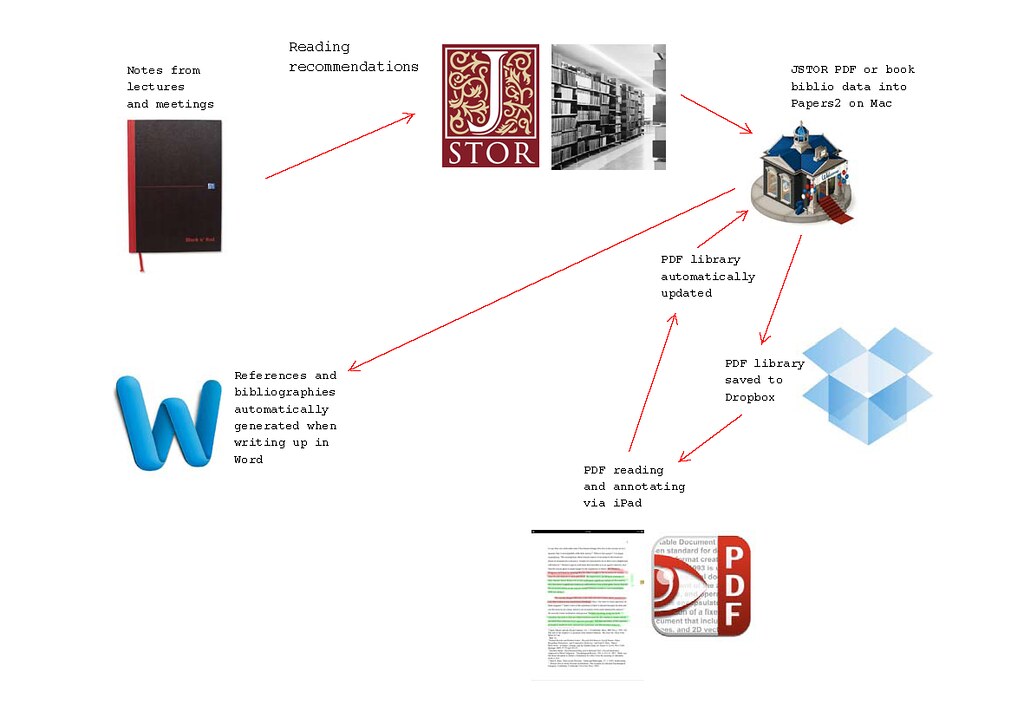
 ipad pdf workflow, originally uploaded by johnfitzg.
Time to update this post: a new release of Papers 2 has made my workflow even easier! Very happy to say that my workflow now has one less step….
A diagram (click image to see larger version on Flickr) showing how I’ve set up my library of PDF journal articles for easy location, citation and annotation on my iPad. My goal with this system was to make sure I could easily access, annotate and retrieve PDF journal articles without creating reams of paper. I had a promising experience reading PDFs with my Kindle, but found it had two problems: one, the 6″ screen meant most PDFs had to be read in landscape orientation, and two, it wasn’t very easy to review annotations after I made them. With an ipad, I’ve been able to link everything together much more smoothly.
The key principles for me are:
- A single copy of each PDF
- A system for tracking and recalling citation info
- Any annotations need to be easily viewable and exportable
- The library should be viewable from more than one computer
Here’s how it works:
- I use Papers 2 (a Mac programme) to organise PDFs from JSTOR and add metadata. I also import bibliographic records for paper books I own (only about 30-odd philosophy books so dar). This means I can automatically cite any paper or book in my collection later
(see point 6). - I have my Papers PDF library saved into a Dropbox folder, which means…
- I can easily import them into my iPad, where… the Papers 2 app wirelessly syncs collections, PDFs and annotations. The new release of Papers 2 on the iPad has much better annotation support, so I no longer need a separate app. This also means I don’t strictly need the Dropbox folder, but I have kept my Papers library there so I can access files from another computer if I need to.
I annotate them using PDF Expert. This is a great programme with easy integration into Dropbox. One can annotate PDFs with all the standard Adobe markups; text notes, coloured highlights and freehand coloured marks. These are saved as editable markup, or can be ‘flattened’ if you want to send them to someone who cannot edit them (unlikely, I should think).The marked-up PDFs are sychronised back with the Dropbox folder, so I have a single copy of each PDF with all my notes. One small snag here – Papers 2, at present, doesn’t natively display the PDF markup. But there is an easy ‘open in…’ option to get round this. The main thing is that there is one copy of each file which can be searched for and cited.- Finally, when I come to write a paper based on books or articles I’ve read, I can automatically cite from Papers2, in the manner of Endnote etc. No more fiddling with footnotes and compiling bibliographies!
All working very well thus far, we’ll see how I get on as my library grows. I’m hopeful that by finding a smooth system, I can add value to texts I read for my studies.